
Clear Chrome's internal DNS host cache, flush socket pools, and troubleshoot the wider DNS path across your operating system, recursive resolver, authoritative DNS, network and cloud or VPS infrastructure.
chrome://net-internals/#dns in Chrome and click Clear host cache. Then open chrome://net-internals/#sockets, click Flush socket pools, and reload the website. If the problem continues, check the operating-system DNS cache, Secure DNS, DNS records, TTL, resolver results, VPN or proxy settings, and the server or application behind the domain.
If a website is not loading correctly after a DNS change, Chrome may still be using an older DNS result.
One of the fastest things you can try is clearing Chrome’s internal DNS host cache using:
chrome://net-internals/#dns
Open that address in Chrome and click Clear host cache.
You can then open:
chrome://net-internals/#sockets
and click Flush socket pools.
These two steps can solve browser-level DNS problems, especially after a website changes IP address, moves to another server, or has recently updated DNS records.
But Chrome is only one part of DNS resolution.
If clearing Chrome’s DNS cache does not solve the problem, the issue may instead be related to:
- your operating system DNS cache
- Chrome Secure DNS
- your recursive DNS resolver
- DNS TTL
- A or AAAA records
- authoritative nameservers
- a VPN or proxy
- a load balancer
- your VPS or cloud server
- the application running on that server
This guide starts with the quick Chrome fix and then shows you how to identify where the DNS problem actually exists.
What Is chrome://net-internals/#dns?
chrome://net-internals/#dns is an internal Chrome diagnostics page that includes an option for clearing Chrome’s host cache.
When you visit a website such as:
example.com
your browser needs to determine which server IP address it should connect to.
For example:
example.com
↓
203.0.113.25
DNS performs this translation from a human-readable domain name to an IP address.
Chrome may retain host-resolution information temporarily so it does not need to repeat the same lookup unnecessarily.
Normally, that improves performance.
Problems can appear when the DNS information changes.
For example, imagine a website previously pointed to:
198.51.100.10
but after a server migration it now points to:
203.0.113.45
If Chrome still has an older result available, your browser may behave differently from another device or DNS tool.
Clearing Chrome’s host cache removes Chrome’s cached host-resolution information so the hostname can be resolved again.
However, other DNS caches can still exist outside Chrome. Clearing Chrome’s cache does not automatically clear DNS information stored by your operating system or an external DNS resolver.
How to Clear DNS Cache in Chrome
Let’s go through the process step by step.
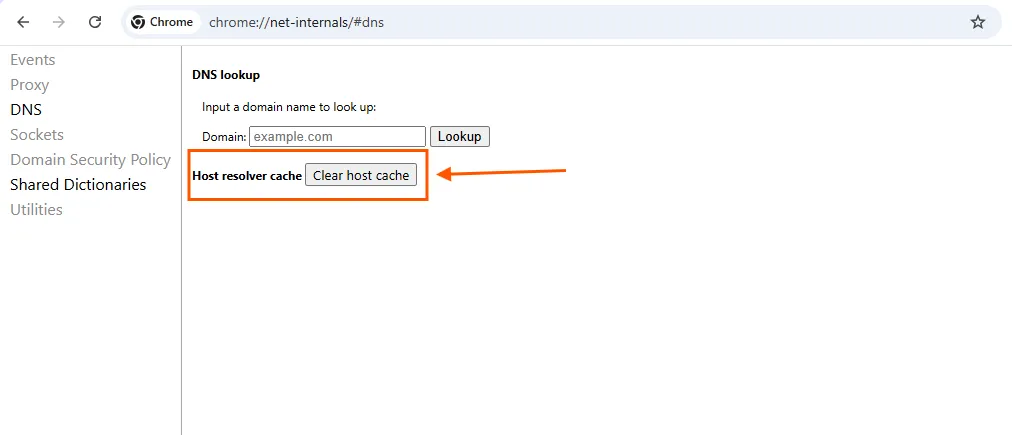
Step 1: Open Chrome Net Internals DNS
Open Google Chrome.
Enter this address:
chrome://net-internals/#dnsThen press Enter.
You should see Chrome’s DNS section.
Step 2: Click Clear Host Cache
Find the button labeled:
Clear host cache
Click it once.
This clears Chrome’s internal host cache.
You normally do not need to clear your browsing history, cookies, passwords, or regular browser cache to perform this step.
Step 3: Flush Chrome’s Socket Pools
Next, open:
chrome://net-internals/#socketsFind:
Flush socket pools
and click it.
Chrome may have existing network connections associated with the previous destination. Flushing the socket pools closes reusable network sockets so Chrome can establish fresh connections.
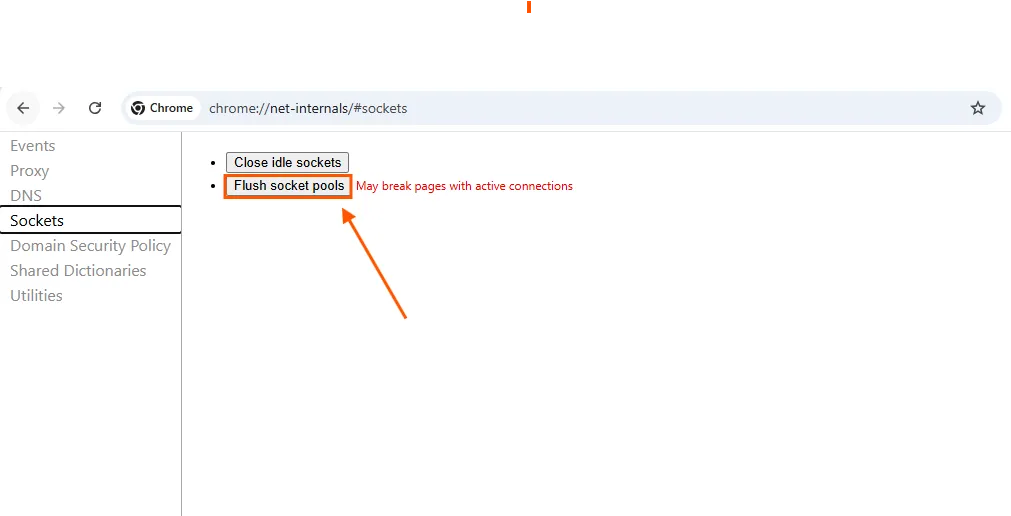
After flushing the sockets, reload the website you were troubleshooting.
When Should You Clear Chrome’s DNS Cache?
You do not need to clear the DNS cache regularly.
It is primarily a troubleshooting step.
Here are some common situations where it can help.
1. A Website Recently Changed Its IP Address
This commonly happens during:
- VPS migrations
- cloud migrations
- hosting provider changes
- server replacements
- load balancer changes
- infrastructure upgrades
If one browser continues reaching the previous environment, clearing its host cache is worth trying.
2. You Recently Changed DNS Records
For example, you may have changed:
- an A record
- an AAAA record
- a CNAME record
If Chrome is behaving as though the old configuration still exists, clear the host cache and test again.
3. A Site Works on Your Phone but Not Your Computer
This is a useful clue.
Different devices can use different:
- DNS caches
- DNS resolvers
- networks
- VPNs
- IPv4 or IPv6 connections
- Secure DNS settings
If a website works on one device but not another, the problem may be local rather than a problem with the website itself.
4. You See DNS_PROBE_FINISHED_NXDOMAIN
Chrome may display an error such as:
DNS_PROBE_FINISHED_NXDOMAIN
NXDOMAIN indicates that DNS resolution returned a response saying the requested domain name does not exist.
This can happen because of:
- a mistyped domain
- incorrect DNS configuration
- missing DNS records
- incorrect nameserver delegation
- stale negative DNS caching
- resolver problems
Clearing Chrome’s cache may help in some cases, but it will not fix an incorrectly configured domain.
Chrome DNS Cache vs Operating System DNS Cache
An important troubleshooting mistake is assuming that Chrome is the only place where DNS information can be cached.
It is not.
A simplified DNS path might look like this:
Chrome
↓
Operating system
↓
Recursive DNS resolver
↓
Authoritative DNS
Each layer plays a different role.
| Layer | What it does |
|---|---|
| Chrome | May retain host-resolution information |
| Operating system | May cache DNS responses locally |
| Recursive resolver | Looks up DNS information and caches responses according to TTL |
| Authoritative nameserver | Provides authoritative DNS information for the domain |
This explains why clearing:
chrome://net-internals/#dns
does not necessarily solve every DNS problem.
The stale information might exist somewhere else.
Chrome Secure DNS Can Change How DNS Troubleshooting Works
Modern Chrome also supports Secure DNS, which can use encrypted DNS lookups.
Google documents this setting under:
Chrome Settings → Privacy and security → Security → Use secure DNS
Chrome normally uses Secure DNS in automatic mode and can also be configured to use a custom Secure DNS provider.
This matters because Chrome may not always behave exactly like another application on your computer.
For example:
nslookup example.com
might return the expected result while Chrome behaves differently because the applications are not following exactly the same DNS path.
If DNS problems appear only in Chrome, check your Secure DNS configuration.
Open:
chrome://settings/securityScroll to Use secure DNS.
If you have manually configured a Secure DNS provider, temporarily switching back to your current service provider can help determine whether that provider is causing the issue.
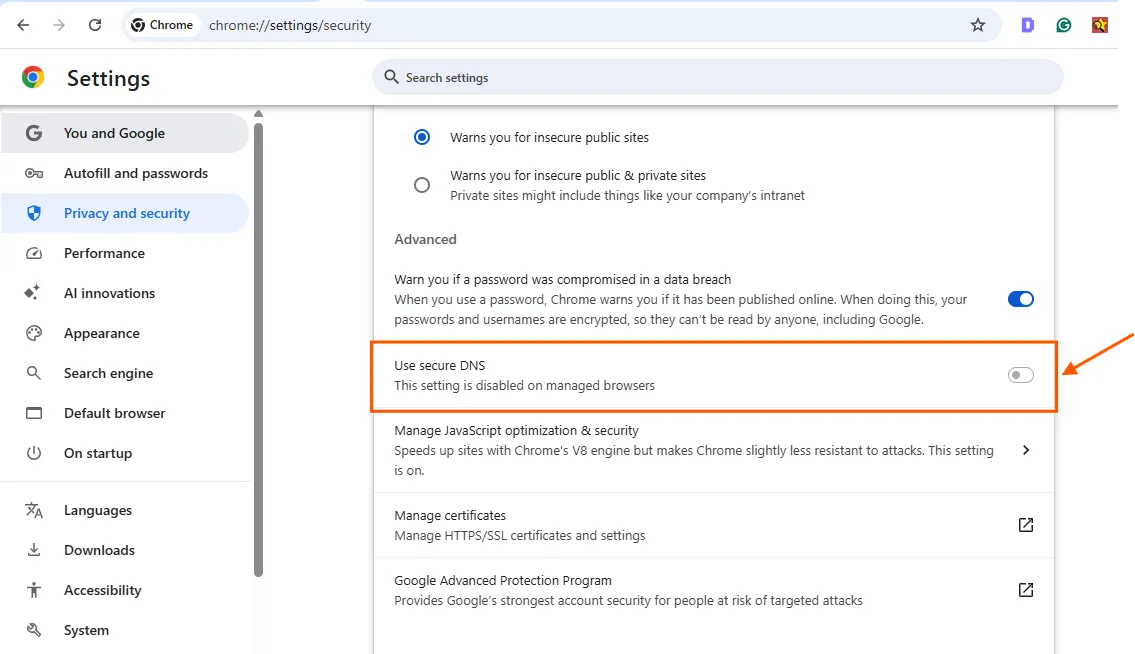
Do not permanently disable Secure DNS just because one website is failing. Use this as a diagnostic step to identify whether the DNS provider is involved.
How to Flush the DNS Cache in Windows
If clearing Chrome does not solve the problem, your operating system may still have DNS information cached.
On Windows, open Command Prompt as Administrator.
Run:
ipconfig /flushdnsWindows should confirm that the DNS resolver cache was flushed.
Then reopen or reload Chrome and test the website again.
How to Flush the DNS Cache on macOS
On macOS, DNS cache handling varies depending on the version and underlying services.
A commonly used command is:
sudo dscacheutil -flushcachesudo killall -HUP mDNSResponderYou may be asked for your administrator password.
After running the command, test the domain again.
How to Flush DNS Cache on Linux
Linux does not have one universal DNS cache command.
The correct method depends on the DNS service running on the system.
Many modern Linux distributions use systemd-resolved.
You can try:
sudo resolvectl flush-cachesOn some older systems, you may see:
sudo systemd-resolve --flush-cachesIf your system uses another caching service such as dnsmasq, the procedure will be different.
For cloud servers, first check whether a local DNS caching service is running before assuming the server has a DNS cache that needs to be flushed.
How to Check DNS Without Chrome
Once you have cleared the browser cache, the next step is testing DNS directly.
Two common tools are:
- nslookup
- dig
These tools help you separate a Chrome problem from a wider DNS problem.
Check DNS With nslookup
Run:
nslookup example.comYou should see the DNS server being queried and the resulting IP address.
For example:
Name: example.com
Address: 203.0.113.25
Compare that IP address with the one you expect the domain to use.
Check DNS With dig
If dig is installed, run:
dig example.comLook for the ANSWER SECTION.
You can also query a particular DNS resolver.
For example:
dig @8.8.8.8 example.com
You can compare this with another resolver:
dig @1.1.1.1 example.com
If two resolvers return different IP addresses immediately after a DNS change, caching may be involved.
DNS Cache vs DNS Propagation
These terms are often used interchangeably, but they are not exactly the same thing.
DNS Cache
A DNS cache is a stored DNS response.
It may exist in:
- your browser
- your operating system
- a recursive DNS resolver
Caching reduces the number of DNS lookups required.
DNS Propagation
What people commonly call DNS propagation is the period after a DNS change when different DNS resolvers may still return different answers because older cached responses have not yet expired.
Suppose an A record previously pointed to:
198.51.100.10
and you change it to:
203.0.113.45
If the TTL was:
3600
a recursive resolver that recently cached the old response may continue using that response until its cached TTL expires.
Another resolver that did not already have the record cached may retrieve the new IP immediately.
That is why:
User A → New server
User B → Old server
can temporarily happen after a DNS change.
DNS records are not simply being “pushed” slowly from server to server around the internet.
Much of what users experience as propagation is the result of cached DNS answers expiring at different times.
And clearing Chrome cannot force an external recursive resolver to discard its cached response.
What Is DNS TTL?
TTL means Time to Live.
It tells DNS resolvers how long a DNS response can normally be cached before the resolver should request fresh information.
For example:
TTL: 300
means:
300 seconds = 5 minutes
A TTL of:
3600
means:
1 hour
And:
86400
means:
24 hours
A lower TTL can make planned DNS changes take effect more quickly across caching resolvers, but very low TTLs also increase the number of DNS queries.
Why Lowering TTL Immediately Before a Migration May Not Help
If you are planning a server migration, do not wait until five minutes before the cutover to reduce your TTL.
Suppose your current TTL is:
86400
or 24 hours.
A resolver may already have cached your existing record with that TTL.
Changing the TTL at your authoritative DNS provider does not retroactively modify the TTL of a response that another resolver has already cached.
A safer process is:
- Check your current TTL.
- Lower it at least one existing TTL period before your migration.
- Wait for older cached responses to expire.
- Perform the DNS change.
- After the migration is stable, increase the TTL again if appropriate.
For example, if your current TTL is 24 hours, lower it at least 24 hours before your planned cutover, preferably with additional margin.
This is particularly important when moving:
- a website between VPS providers
- workloads between cloud regions
- an application behind a new load balancer
- services to a new public IP
- infrastructure between cloud providers
Why Clearing chrome://net-internals/#dns May Not Fix the Problem
If Chrome still cannot reach the correct website after you clear its host cache, the problem may not be Chrome at all.
Work through the following possibilities.
1. The DNS Record Is Incorrect
Check your A, AAAA, and CNAME records.
For example:
app.example.com
A
203.0.113.50
Make sure:
203.0.113.50
is actually the destination you intend to use.
A browser cannot fix an incorrect authoritative DNS record.
2. The Old DNS Response Is Still Cached Elsewhere
Your recursive resolver may still have an older response cached.
Check the current TTL and compare responses from multiple DNS resolvers.
For example:
dig @8.8.8.8 example.com
and:
dig @1.1.1.1 example.com
3. The Authoritative Nameservers Are Incorrect
Check which nameservers are authoritative for the domain.
If you recently changed DNS providers but the registrar still delegates the domain to old nameservers, editing records at the new provider will not have the expected effect.
4. Your AAAA Record Is Wrong
One of the easiest DNS problems to miss is IPv6.
You may correctly update:
A → 203.0.113.50
while an old AAAA record still points elsewhere.
Some clients may prefer IPv6 when it is available.
That can create a confusing situation where the domain works for some users but fails for others.
Always check both:
A
AAAA
when troubleshooting.
5. DNS Is Correct but the Server Is Down
DNS only tells a client where to connect.
It does not guarantee that the server or application is healthy.
If the correct IP address is returned but the website still does not work, investigate:
- VPS status
- cloud instance status
- firewall rules
- cloud security groups
- public IP assignment
- load balancer health
- reverse proxy configuration
- web server status
- application health
- TLS certificates
6. A VPN or Proxy Is Changing Your Network Path
VPNs and proxies can affect DNS resolution.
If the problem occurs only when a VPN is enabled, compare the result with the VPN temporarily disconnected.
Corporate networks may also use:
- private DNS zones
- DNS filtering
- HTTP proxies
- security software
- split DNS
These can produce different DNS answers from a normal home or mobile connection.
How to Troubleshoot DNS After Moving a Website to a New Server
Server migrations are one of the most common situations where DNS confusion occurs.
Imagine your website currently runs at:
Old server
192.0.2.20
You migrate it to:
New server
192.0.2.80
Then you change your DNS A record from the old IP to the new IP.
Some users reach the new server.
Others still reach the old server.
Instead of repeatedly clearing random caches, troubleshoot the path layer by layer.
Use this sequence:
Chrome host cache
↓
Operating-system DNS cache
↓
Recursive DNS resolver
↓
Authoritative DNS records
↓
Public IP / load balancer
↓
Cloud or VPS server
↓
Reverse proxy / web server
↓
Application
This is a much more reliable method than assuming that every problem after a DNS change is caused by “DNS propagation.”
How to Find Which IP Address a Domain Resolves To
Use:
nslookup example.com
or:
dig example.com
For dig, look at the answer:
example.com. 300 IN A 203.0.113.50
The IP in the answer is the DNS destination being returned.
How to Check Which Server curl Connects To
You can also inspect an actual HTTP connection.
Run:
curl -v https://example.com/
Verbose mode shows connection information that can help identify the destination address used by curl.
This is different from:
curl -I https://example.com/
which is primarily useful for retrieving HTTP response headers.
How to Test a New Server Before Changing DNS
This is particularly useful during VPS and cloud migrations.
Suppose:
example.com
currently points to your old server, but your new server is:
203.0.113.50
You can test the new destination using:
curl --resolve example.com:443:203.0.113.50 https://example.com/
This tells curl to connect to:
203.0.113.50
for that hostname without requiring you to change public DNS first.
It is useful for testing:
- HTTPS configuration
- reverse proxies
- virtual hosts
- application responses
- a new VPS
- a new load balancer
- a server before DNS cutover
For infrastructure migrations, this is often safer than changing production DNS simply to see whether the new server works.
Understanding DNS_PROBE_FINISHED_NXDOMAIN
One of the most common Chrome DNS errors is:
DNS_PROBE_FINISHED_NXDOMAIN
NXDOMAIN means the queried domain name was reported as not existing.
Negative DNS responses can themselves be cached for a period of time. DNS negative caching is formally defined by RFC 2308.
Check:
- the domain spelling
- the requested hostname
- A records
- AAAA records
- CNAME records
- authoritative nameservers
- domain delegation
- DNSSEC configuration
- local DNS cache
- recursive DNS resolver
If the domain was recently created or a previously missing hostname was just added, negative caching can sometimes explain why one resolver still reports NXDOMAIN while another resolver finds the new record.
ERR_NAME_NOT_RESOLVED
Chrome may also display:
ERR_NAME_NOT_RESOLVED
This means Chrome could not successfully resolve the hostname.
Possible causes include:
- DNS configuration errors
- resolver failures
- cached DNS problems
- Secure DNS configuration
- VPNs
- proxies
- network issues
Try clearing the Chrome host cache first.
If that fails, test the domain using nslookup or dig.
Why a Website Works on Mobile but Not Desktop
This situation is more useful diagnostically than it may seem.
Your phone and desktop may be using different:
- DNS resolvers
- cached DNS responses
- networks
- IPv4/IPv6 paths
- Secure DNS configurations
- VPNs
For example:
Desktop → Home Wi-Fi → ISP DNS
Phone → Mobile network → Mobile carrier DNS
If the website works over mobile data but fails over Wi-Fi, compare the DNS results from each network.
You can also temporarily connect your computer to your phone’s hotspot.
If the website suddenly works, that suggests the original network or DNS resolver may be involved.
Chrome DNS Troubleshooting Table
Use this table to identify the likely layer causing the problem.
| What you see | Likely area to investigate |
|---|---|
| Chrome fails but another browser works | Chrome cache, Secure DNS, proxy, profile |
| Chrome works after clearing host cache | Chrome had stale host-resolution information |
dig returns the old IP | DNS cache, TTL, or DNS configuration |
| One resolver returns old IP and another returns new IP | Recursive DNS caching |
| A record is correct but some users still fail | Check AAAA/IPv6 |
| DNS returns the correct IP but website times out | Firewall, server, routing, load balancer |
| Correct server responds with wrong website | Virtual host, reverse proxy, ingress configuration |
| NXDOMAIN is returned everywhere | Domain/hostname DNS configuration |
| Site works on mobile but not Wi-Fi | Local network or resolver |
| Site works without VPN but not with VPN | VPN DNS/routing configuration |
Best Practices Before Changing DNS for a Cloud or VPS Migration
If you control the infrastructure, it is better to reduce DNS problems before the migration than troubleshoot them afterward.
Reduce TTL in Advance
Do not reduce the TTL only moments before the migration.
Lower it at least one existing TTL period before the planned change.
Verify the New Server Before Cutover
Before changing public DNS, check:
- application availability
- HTTPS configuration
- certificates
- web server configuration
- reverse proxy
- database connectivity
- firewall rules
- cloud security groups
- load balancer health
- public IP routing
Use curl --resolve when appropriate to test the new server with the production hostname before changing DNS.
Keep the Old Environment Running Temporarily
If practical, do not immediately destroy the old server after changing DNS.
Some recursive resolvers may still have the old address cached.
Keeping the old environment functional during the transition can reduce disruption.
Monitor DNS and Application Health Separately
A successful DNS lookup does not mean the website is healthy.
Similarly, an application can be perfectly healthy while DNS points users to the wrong destination.
Monitor these separately:
DNS resolution
and:
Application availability
Complete Chrome DNS Troubleshooting Checklist
If a website is still not resolving correctly, follow these steps in order.
Browser
- Open
chrome://net-internals/#dns. - Click Clear host cache.
- Open
chrome://net-internals/#sockets. - Click Flush socket pools.
- Reload the site.
Chrome configuration
- Open
chrome://settings/security. - Check the Use secure DNS setting.
Operating system
- Flush the operating-system DNS cache.
DNS
- Run
nslookup example.comordig example.com. - Check the A record.
- Check the AAAA record.
- Check CNAME records if applicable.
- Verify authoritative nameservers.
- Check the TTL.
- Compare multiple recursive DNS resolvers.
Network and infrastructure
- Disable a VPN temporarily for testing.
- Check proxy configuration.
- Verify the public IP or load balancer.
- Check firewall rules and security groups.
- Verify the server is running.
- Verify the application is healthy.
- Test from another network.
Following the layers in order helps determine whether the problem exists in Chrome, your device, DNS, your network, or the infrastructure behind the domain.
FAQs
What is chrome://net-internals/#dns?
chrome://net-internals/#dns is an internal Chrome page that includes the Clear host cache option. It is useful when troubleshooting browser-level hostname resolution problems.
How do I clear the DNS cache in Chrome?
Open:
chrome://net-internals/#dns
and click:
Clear host cache
Then open:
chrome://net-internals/#sockets
and click:
Flush socket pools
Reload the website afterward.
Is chrome://net-internals/#dns safe to use?
Yes, clearing the host cache is a troubleshooting operation. It does not delete your passwords, bookmarks, browsing history, or cookies.
Flushing socket pools can interrupt active network connections in other Chrome tabs, so save important browser-based work first.
Does clearing Chrome DNS delete browsing history?
No.
Clearing Chrome's host cache is different from clearing:
- browser history
- cookies
- saved passwords
- normal website cache
Does clearing Chrome's DNS cache clear all DNS caches?
No.
It only addresses Chrome's own host-resolution cache.
DNS information may also be cached by:
- your operating system
- your router or local network
- a recursive DNS resolver
Why does a domain still point to my old server?
An older DNS response may still be cached by a recursive resolver, operating system, browser, or another component.
First run:
dig example.com
or:
nslookup example.com
and check which IP is actually being returned.
Also verify both A and AAAA records.
What is the difference between DNS cache and DNS propagation?
A DNS cache is a stored DNS response.
DNS propagation is a commonly used term for the transition period after a DNS change when different recursive resolvers may temporarily return different cached answers.
How long does DNS cache last?
It depends on the TTL associated with the DNS response and the behavior of the caching layer.
A TTL of:
300
represents five minutes.
A TTL of:
3600
represents one hour.
A TTL of:
86400
represents 24 hours.
Why does Chrome show DNS_PROBE_FINISHED_NXDOMAIN?
DNS_PROBE_FINISHED_NXDOMAIN generally indicates that DNS reported that the requested domain name does not exist.
Check:
- spelling
- DNS records
- nameservers
- delegation
- resolver results
- DNSSEC configuration
Remember that negative DNS answers such as NXDOMAIN can also be cached.
Why does Chrome fail while another browser works?
Chrome may have different cached host information or DNS settings.
Check:
chrome://net-internals/#dns
and Chrome's Use secure DNS setting.
Also compare VPN, proxy, extension, and browser-profile behavior.
Should I restart Chrome after clearing the DNS cache?
It is not always necessary, but restarting Chrome can be a useful additional troubleshooting step if the problem continues after clearing the host cache and flushing socket pools.
Can clearing Chrome DNS fix DNS propagation?
No.
Clearing Chrome can remove browser-level cached information.
It cannot force recursive DNS servers elsewhere on the internet to discard responses they have already cached.
Those caches normally need to expire according to their TTL.
Final Takeaway
If a website appears to be using an old DNS result, start with:
chrome://net-internals/#dns
and click Clear host cache.
Then visit:
chrome://net-internals/#sockets
and click Flush socket pools.
If the problem remains, do not keep clearing the same cache repeatedly.
Move down the stack:
Chrome → Operating system → DNS resolver → Authoritative DNS → Public IP / load balancer → Server → Application
That approach helps you determine whether you actually have a Chrome cache problem, a DNS problem, or an infrastructure problem.
For cloud and VPS migrations in particular, check DNS records, TTLs, IPv4 and IPv6 records, server IPs, load balancer configuration, and application health before assuming the browser is responsible.